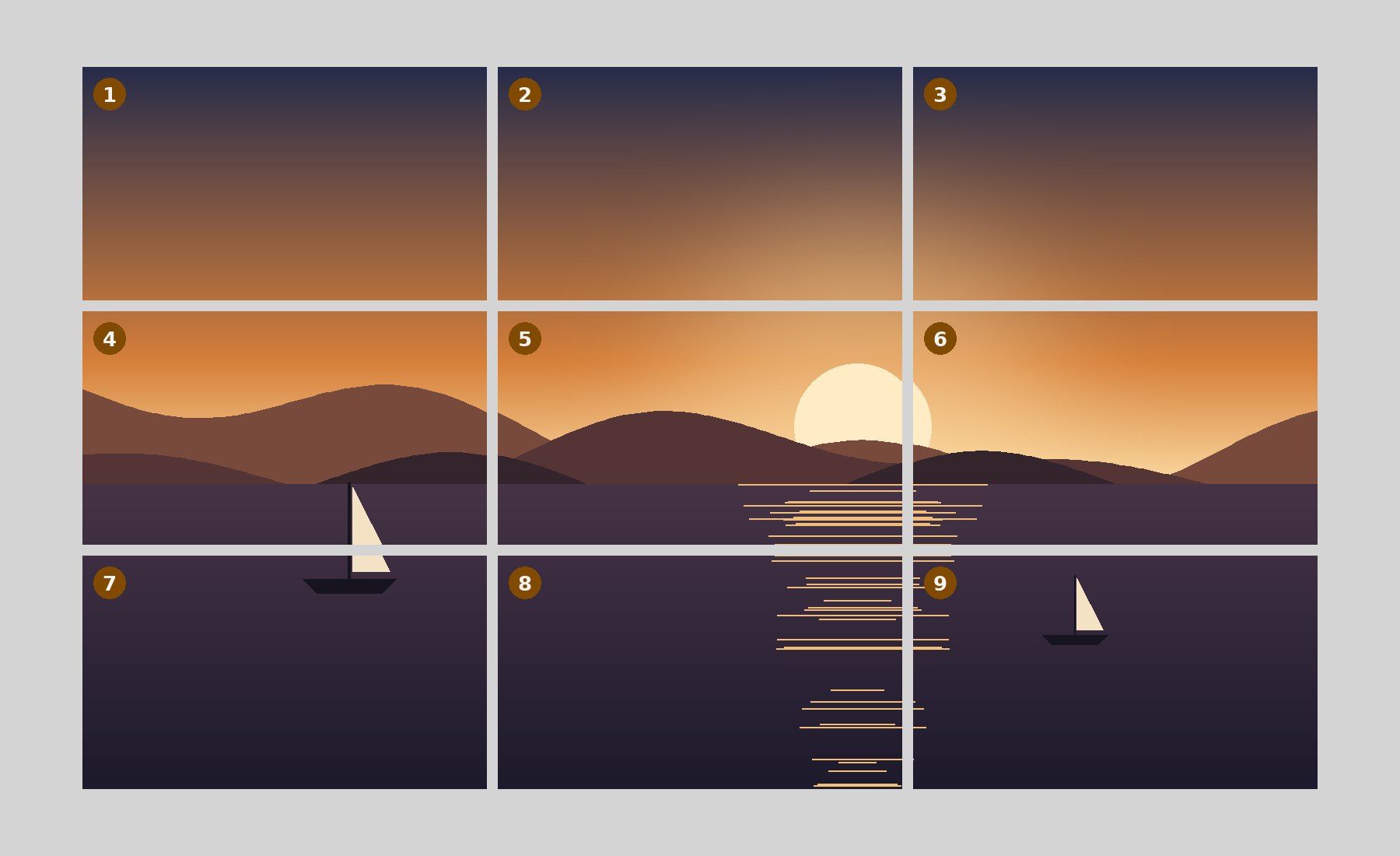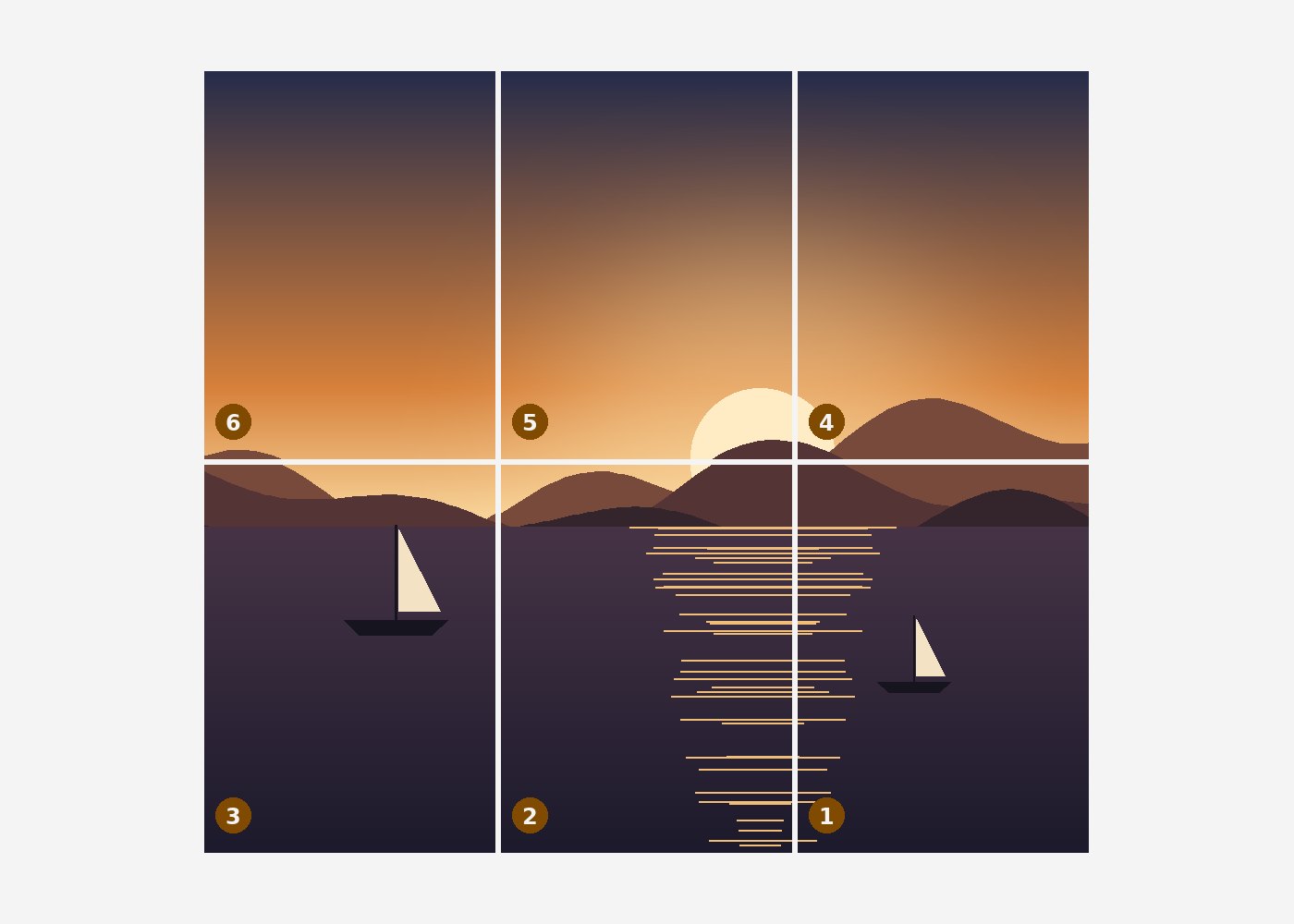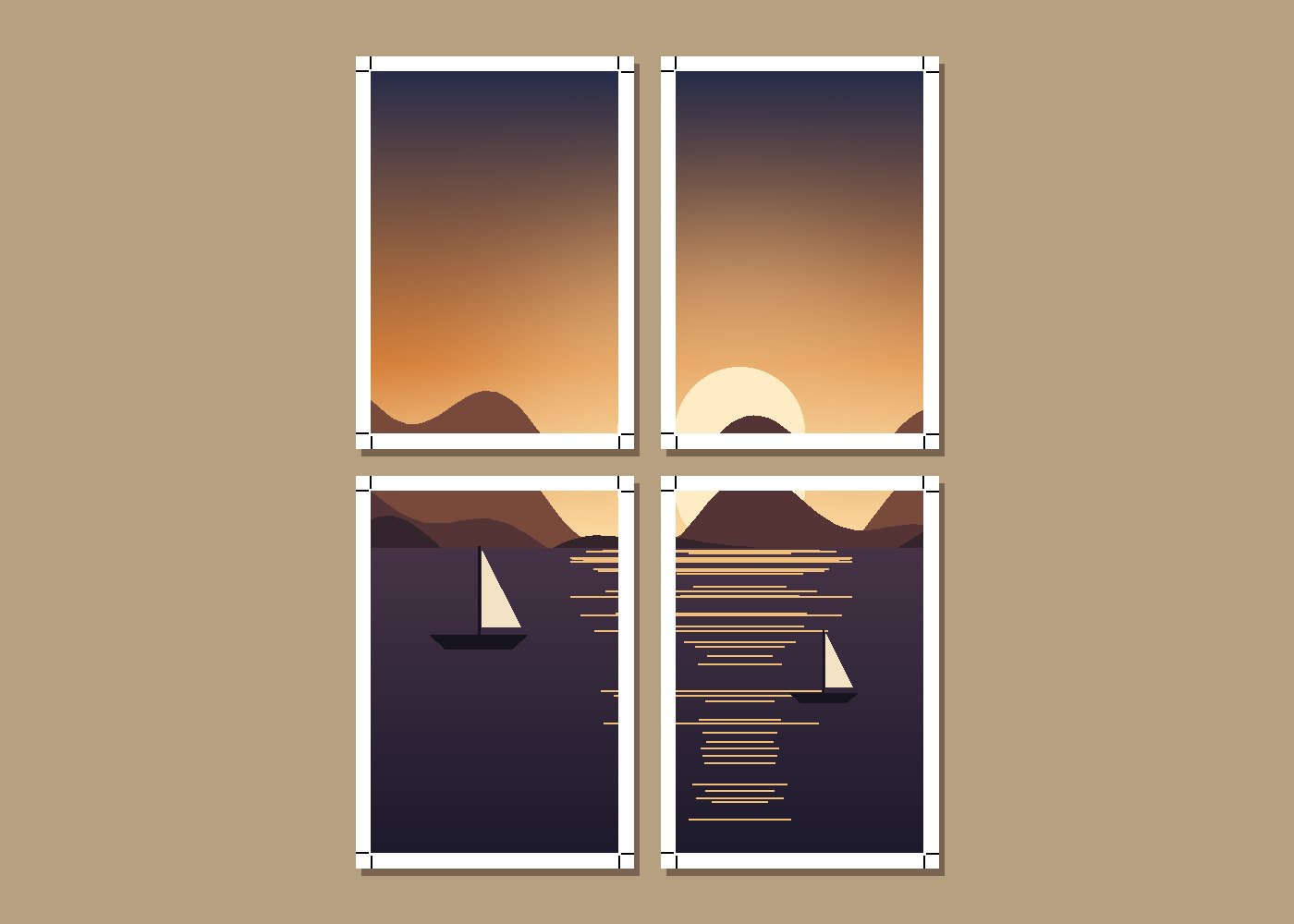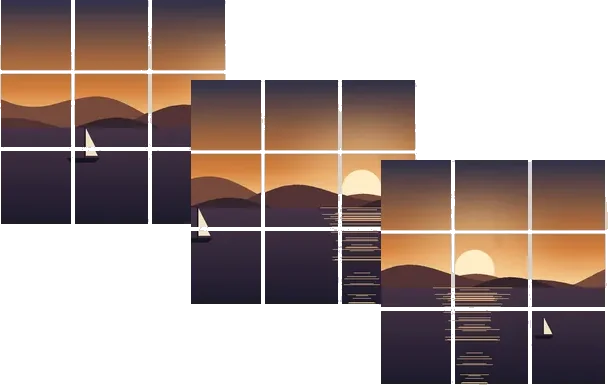
One rule, many pictures
Cutting forty product photos into the same 3 × 3 grid one at a time is forty rounds of open, set, cut, save. The board already holds a recipe; this route is the same recipe applied to a folder. Select several pictures together and the folder surface opens: one set of controls at the top, one row per picture underneath, a run button, and a single archive at the end with one folder per picture and that picture’s own index inside it.
Every picture goes through the same draw call as a single export, so a batch cannot quietly differ from cutting the pictures one by one. Pictures are decoded one at a time and released before the next, which is what keeps a long folder from running a phone out of memory.
A worked example
Three photographs of different shapes, one rule — a 3 × 3 grid of square tiles, crop or pad, whichever costs less (crop while it drops 20 % or less, the default limit):
| Picture | Crop to fit | Pad to fit | Cheaper |
|---|---|---|---|
| 4032 × 3024 | 3024 × 3024, 25% dropped | 4032 × 4032, 25% bars | pad |
| 3024 × 4032 | 3024 × 3024, 25% dropped | 4032 × 4032, 25% bars | pad |
| 2400 × 2400 | 2400 × 2400, 0% dropped | 2400 × 2400, 0% bars | nothing to decide |
Same grid or same tile size
A folder of mixed sizes cannot have both a fixed grid and a fixed tile size, so the board asks which matters. Same grid suits sets that will be displayed the same way — every picture as nine tiles — and lets the tiles be larger for larger pictures. Same tile size suits pipelines and print jobs that want tiles of one size and accept that a bigger picture makes more of them. After the run the summary reports what actually happened: how many different tile sizes, or how many different grids, came out of the folder.
Stop is honoured between pictures. The ones already cut stay in the list with their tiles, and Continue picks up the rest under the same rule. The archive can be downloaded whole, or one picture at a time from its row.
A batch uses one recipe for everything. A picture that needs its own framing — a face near the edge, a horizon in the wrong place — is better cut on its own afterwards, where the framing box can be dragged.
How to do it here
- Select several pictures. Choose them together in the picker, or drop the group on the board.
- Pick the rule. Same grid or same tile size, square or as divided, and how each picture is made to fit.
- Read the preflight. The bar shows how many pictures, how many megabytes of sources and how many tiles to expect.
- Cut and download. Cut the folder, then download one ZIP with a folder per picture.