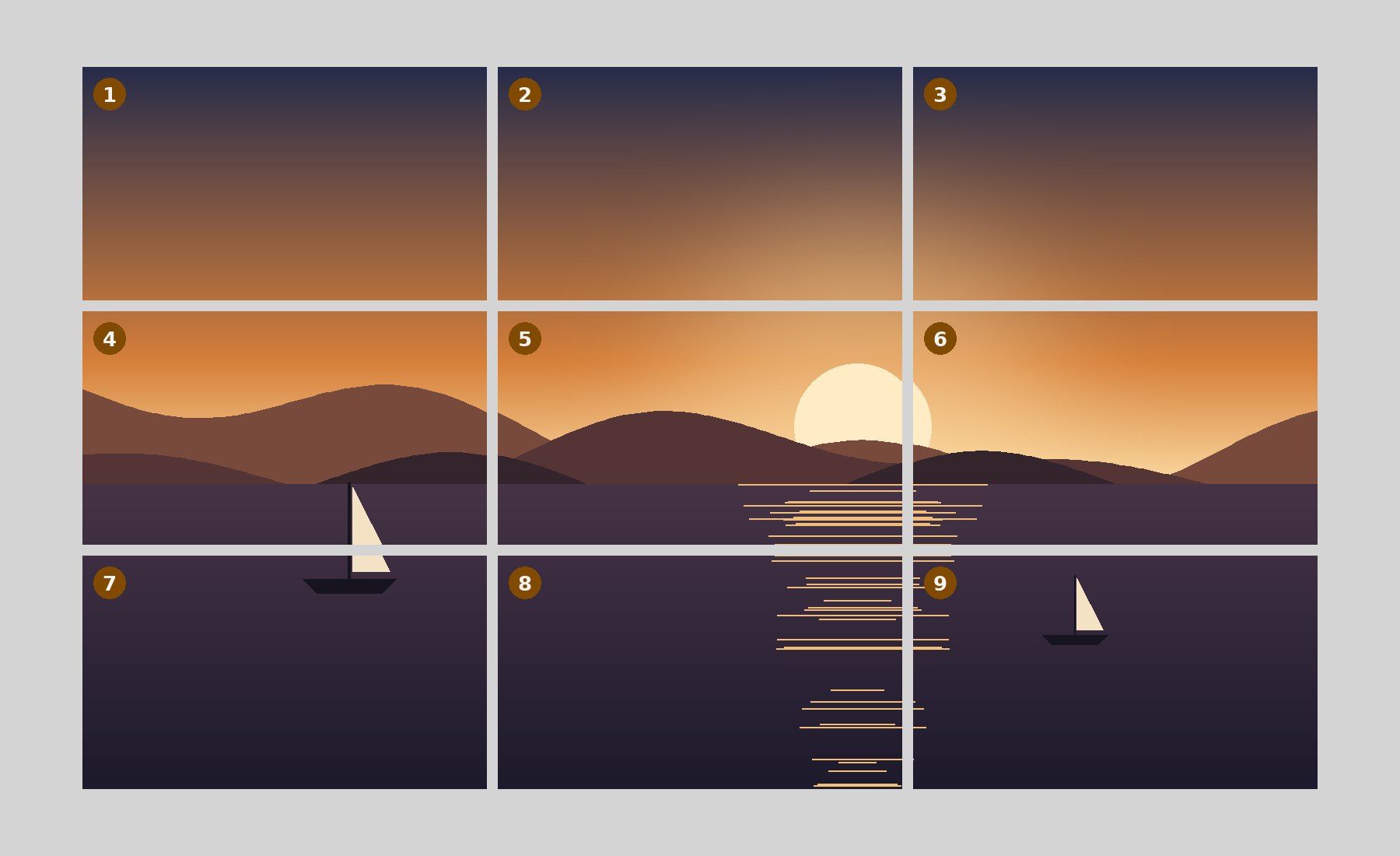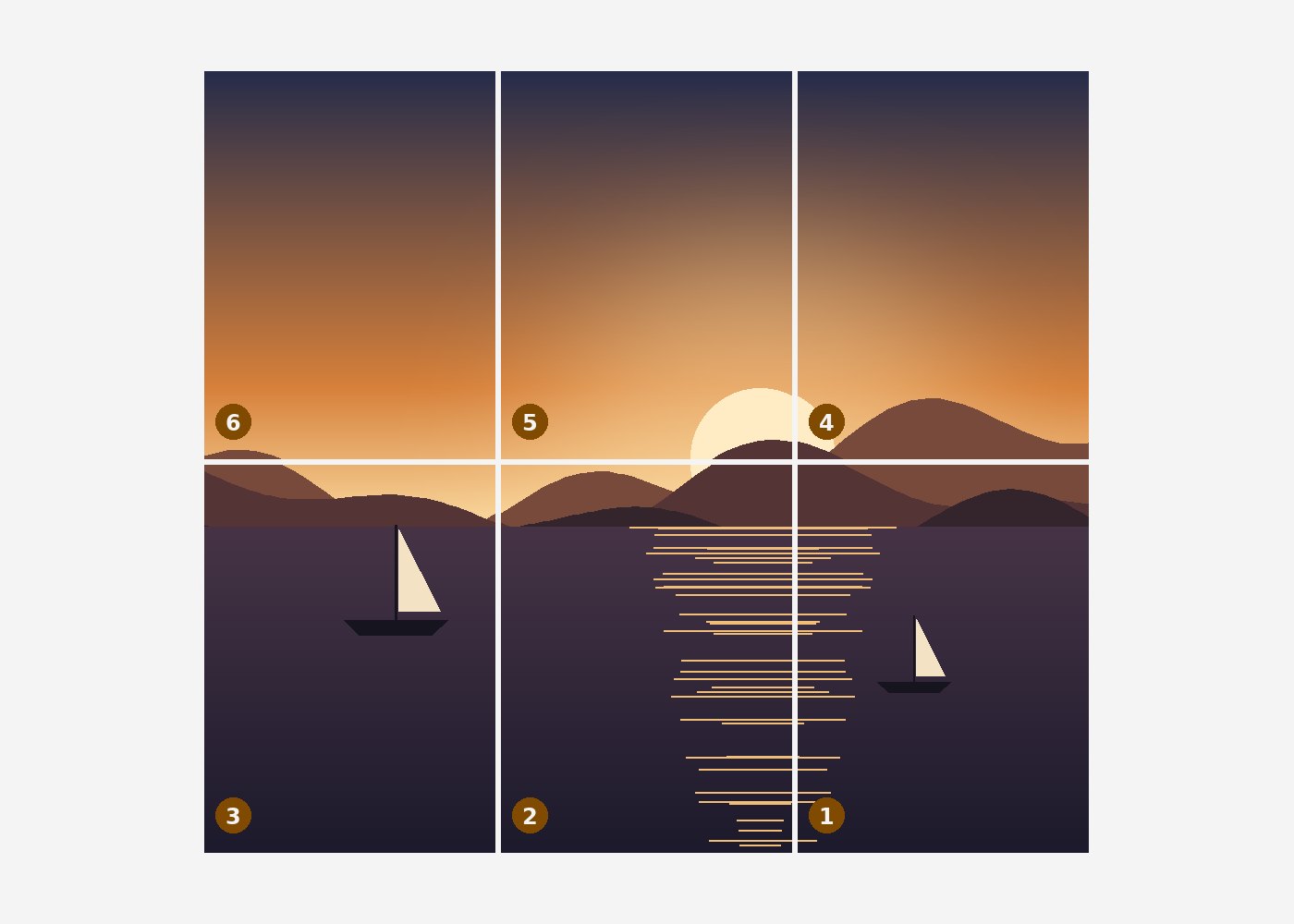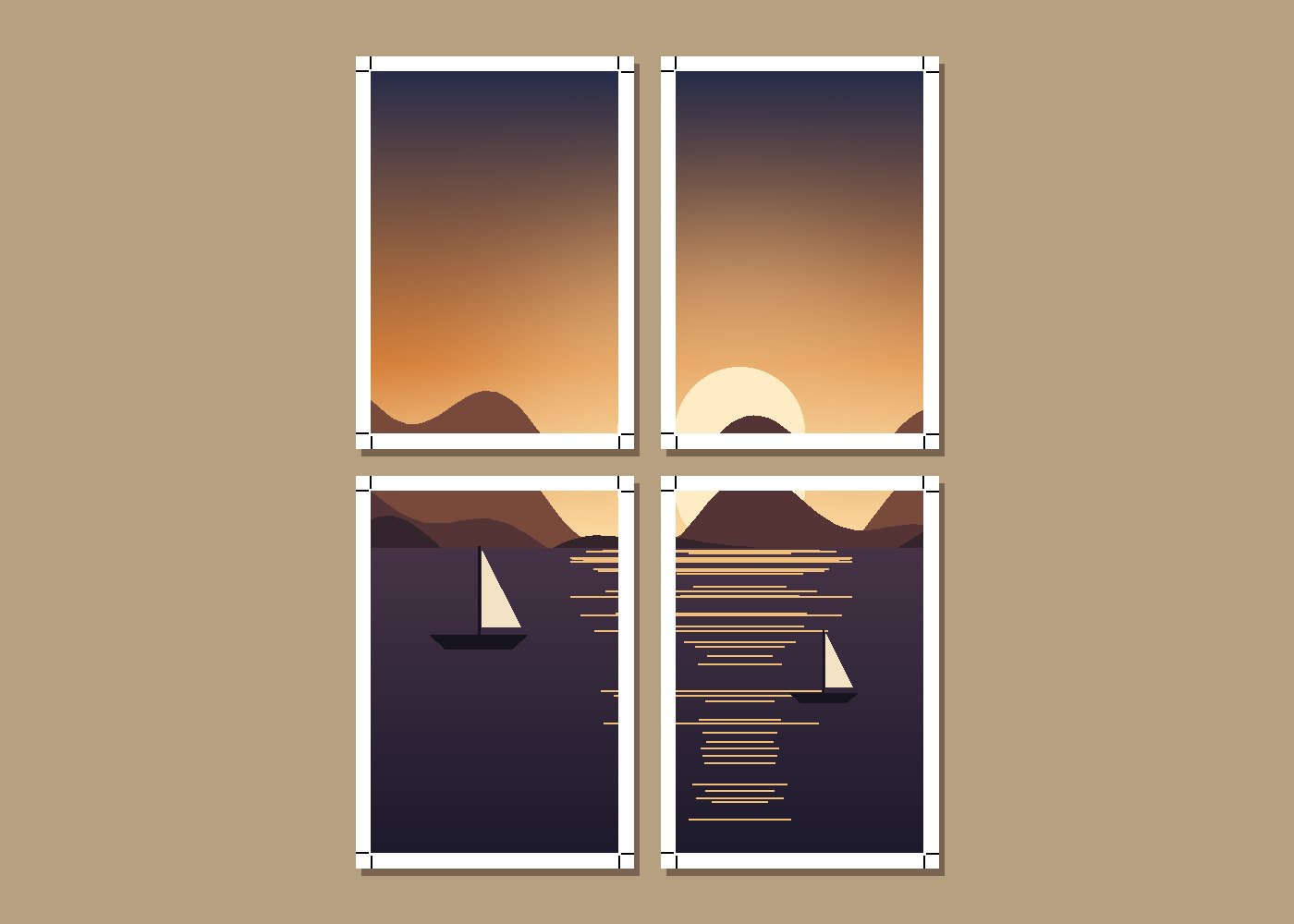
When an even grid is wrong
Equal pieces suit most jobs, and the home page does them. Some pictures are not built on an even grid: a comic page with panels of different sizes, a scanned sheet of stamps in uneven rows, a screenshot with a header, a body and a footer, a photograph where the one useful cut runs a third of the way across. For these the cut lines have to go where the content is, and this route opens the board with free guides and nothing else.
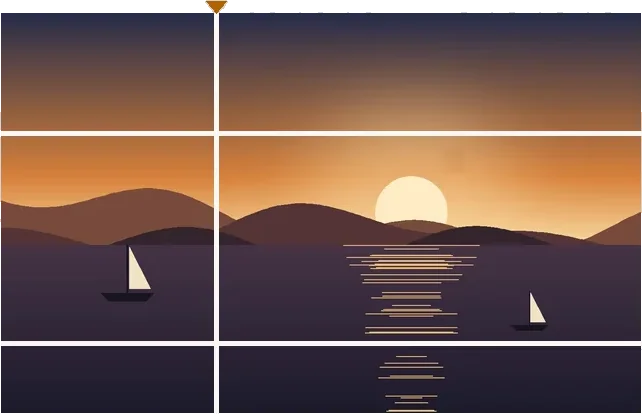
A guide is a whole-pixel position along one axis. Vertical guides divide the picture into columns and horizontal guides into rows; every column and row crossing becomes one file. Guides are stored as fractions of the picture, so a recipe saved on one copy cuts the same proportions on another, and the inspector shows every position in pixels so the exact numbers are never hidden behind a drag.
A worked example
1200 × 2400 → 6 files · columns 360 + 840 = 1200 px · rows 288 + 1824 + 288 = 2400 px
| File | Cell | From x, y | Pixels |
|---|---|---|---|
| page-r1c1.png | row 1 · col 1 | 0, 0 | 360 × 288 |
| page-r1c2.png | row 1 · col 2 | 360, 0 | 840 × 288 |
| page-r2c1.png | row 2 · col 1 | 0, 288 | 360 × 1824 |
| page-r2c2.png | row 2 · col 2 | 360, 288 | 840 × 1824 |
| page-r3c1.png | row 3 · col 1 | 0, 2112 | 360 × 288 |
| page-r3c2.png | row 3 · col 2 | 360, 2112 | 840 × 288 |
Precise without fiddling
Snapping is what makes free cuts usable on a phone. With percent snapping at 5 %, a cut dragged roughly to a third lands on 35 % or 30 %; with pixel snapping at 10, it lands on a round pixel. Typed positions override everything, and a focused cut moves one pixel per arrow press. Spacing works here too: a gutter removes a band around every cut, as if the knife had width, and an overlap makes neighbours share a band.
A cut is geometry. The board does not look for panels, faces or text; it divides where you put the line and reports the sizes that result.
How to do it here
- Open the picture. Drop it on the board; it opens on the Guides rail with no cuts.
- Pull out cuts. Drag from the top ruler for vertical cuts and the side ruler for horizontal ones, or press V and H.
- Set exact positions. Type a pixel position in the cut list, or nudge a focused cut with the arrow keys (Shift for 10 px).
- Cut. Press the cut button; every piece becomes a file, numbered from the corner you choose.