Scanning several photos at once
Four prints per pass instead of one is the quickest way through a box of photographs — as long as the scan gives the detector what it needs to tell one print from the next.
What the detector looks at
The scanned-photo splitter on this site does not recognise photographs. It measures the colour of the scanner lid along the border of the scan and treats anything that differs from it as part of a print. Everything that follows comes from that one fact: the lid has to be one even colour, visibly different from the prints’ edges, and the prints have to be separated by some of it.
Laying out the glass
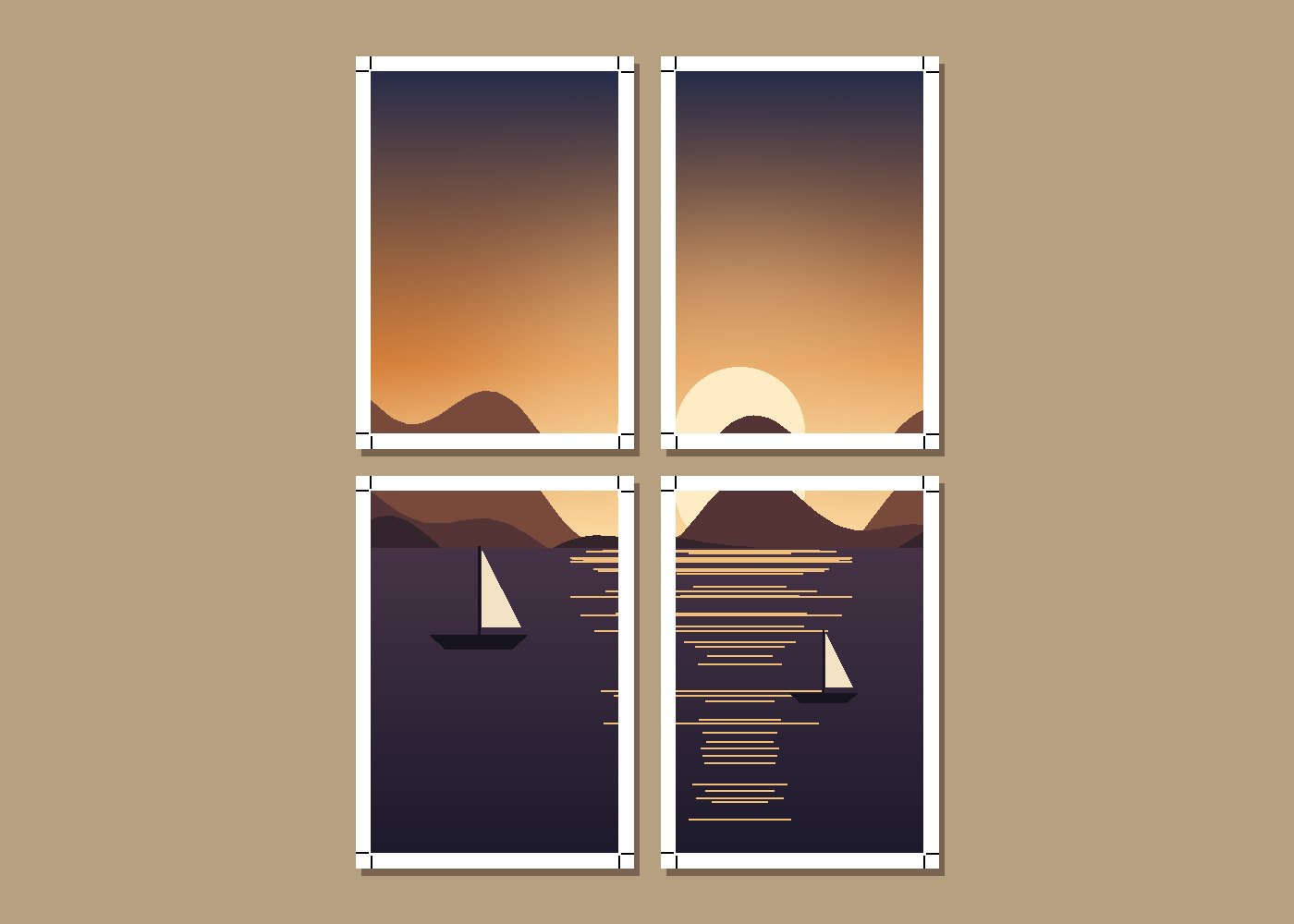
- Leave about a centimetre between prints and from the edge of the glass. Prints that touch are found as one region.
- Keep prints square to the glass edges when you can. Small angles are straightened automatically, but every rotation resamples the picture slightly.
- Close the lid. An open lid lets room light in and the background stops being one colour.
- For white-bordered prints, put a sheet of black or dark paper over them before closing the lid. White on white has no edge to find.
- Clean the glass: a large smudge or a hair can be found as a small print. Raise the smallest-print floor if it is.
Resolution
Scan at 300 DPI for prints you want to keep and 600 DPI for small prints you may enlarge. Detection runs on a reduced copy of the scan, so resolution does not slow it down; the photos themselves are cut from the full scan, so every pixel the scanner captured ends up in the files. A 6 × 4 inch print at 600 DPI is 3600 × 2400 pixels.
When to draw boxes by hand
Overlapping prints, torn or rounded corners, prints laid on a patterned cloth, and photos whose edges are the same colour as the lid all need a hand-drawn box. The editor lets you add a box, drag it into place, resize it from its corner and type its angle. For a folder of scans, the boxes are found automatically; open any scan that needs adjusting on its own afterwards.
Straightening uses bilinear resampling and the receipt says which photos were rotated and by how much. If a print must stay pixel-exact, switch off straightening for axis-aligned crops.